
InCard Finder Setup
1. Getting Started
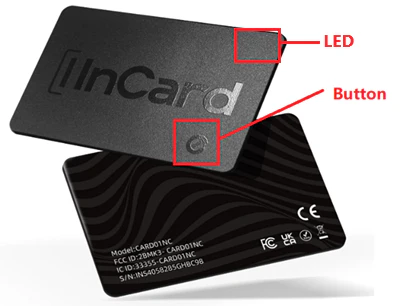
InCard Finder is an ultra-slim tracking card designed to work with either:
- Google Find Hub (Android devices)
- Apple Find My (iPhone / iPad devices)
⚠️ Important:
The card can be connected to one ecosystem at a time. If you want to switch between Android and iOS, a factory reset is required.
Before setup:
- Turn on Bluetooth.
- Ensure your phone is connected to the internet.
- Keep the card close to your device.
2. Pairing with Android (Google Find Hub)
- Press the button firmly once to activate the card. You will hear a confirmation beep.
- Keep the card near your Android phone.
- Follow the on-screen prompt to add it to Google Find Hub.
- When asked to choose the device type, select InCard Finder.
Once connected, your card becomes part of the Google Find network.
3. Pairing with iPhone (Apple Find My)
⚠️ Do NOT select “AirTag” during setup.
Instead:
- Open the Find My app.
- Go to the Items tab.
- Tap Add Item → choose Other Supported Item.
- Press the card button once to activate it.
- Follow the instructions to complete pairing.
After setup, the card will appear inside your Find My items list.
4. Finding Your Card
When Nearby
If your card is within Bluetooth range:
- Open the tracking app.
- Tap the device name.
- Select Play Sound to make it beep.
This helps you locate it quickly inside your home, office, or car.
When Far Away
If the card is out of Bluetooth range:
- Other devices in the Apple or Google tracking network can securely detect it.
- The location updates anonymously through the network.
- You can view the last detected position inside your app.
Your privacy remains protected at all times.
5. Battery Information
InCard Finder contains a sealed, non-replaceable lithium battery.
Estimated lifespan:
- Up to 5 years when used with Android
- Up to 3 years when used with iOS
Battery life may vary depending on usage and environment.
When battery level becomes low, you will receive a notification inside the tracking app.
The battery is permanently sealed to maintain:
- Water resistance
- Structural durability
- Slim profile design
When the battery reaches end of life, the device must be replaced.
6. Water Resistance
InCard Finder is rated IP68.
This means it can:
- Withstand water immersion
- Handle everyday splashes and exposure
- Survive submersion up to 1.5 meters for 30 minutes
7. Factory Reset (Switching Accounts or Platforms)
If you want to:
- Connect the card to a new phone
- Change from Android to iPhone (or vice versa)
- Remove it from your current account
You must perform a factory reset.
Reset Procedure:
- Press the button twice quickly.
- Then press and hold the button for 5 seconds.
- You will hear repeated beeps.
- Release when you hear a double confirmation tone.
- Four final beeps indicate reset success.
After reset, you can pair it as a new device.
⚠️ If previously linked to an Apple account, remove it from the old Find My account before re-pairing.
8. Temporarily Disabling the Card
You may wish to disable the card during:
- Air travel
- Restricted Bluetooth environments
- Security-sensitive locations
To Disable:
- Press the button twice.
- Hold for 5 seconds.
- Release after the confirmation tone.
- Two beeps confirm deactivation.
To Reactivate:
- Press the button once.
- A single beep confirms activation.